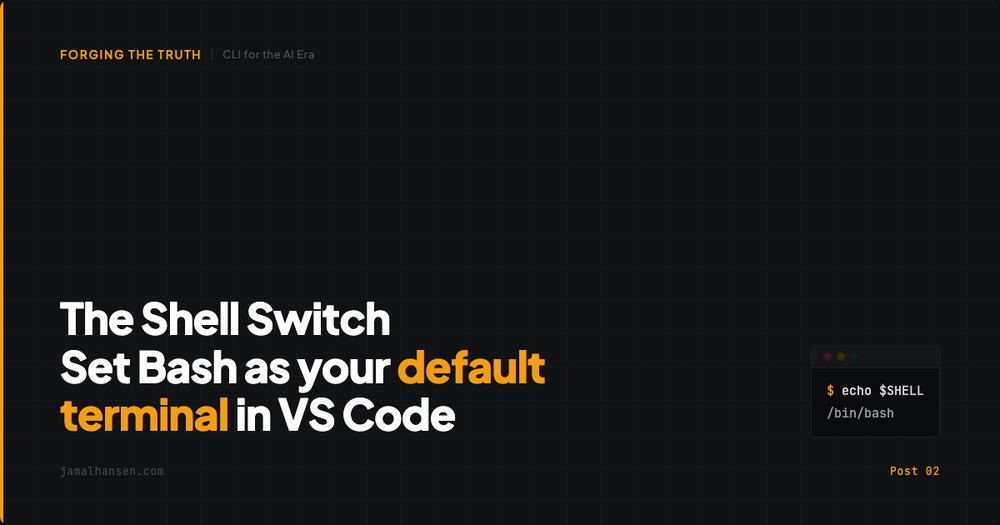
The Shell Switch: Setting Your Native Tongue
The Veil
When you open a terminal in VS Code, is it PowerShell blue? That default shell was chosen for you, not by you. The AI that’s helping you code assumes Bash. If your terminal doesn’t match, you’re not building. You’re translating.
The Dross
The AI speaks Bash. Every path it gives you, every command it suggests, every script it writes – Bash. When your terminal is PowerShell, every / becomes a \ you have to fix by hand. You’re spending mental energy on translation instead of on the problem.
The Strike
Set Bash as your default terminal in VS Code.
- Open the Terminal in VS Code.
- Click the dropdown next to the
+icon. - Select “Select Default Profile”.
- Choose Bash (or WSL/Ubuntu).
Verify it worked:
echo $SHELL
You should see /bin/bash. If you do, the switch is done.
The Truth
Consistency is infrastructure. When your terminal matches what the AI expects, its suggestions run the first time. You stop second-guessing whether a command failed because of the code or because of the shell. That’s one less variable between you and knowing.
Next up: your terminal is set up. Now let’s open a project in VS Code without touching the mouse.