As a former Ubuntu user turned Mac user, I enjoy the bash terminal and POSIX command line that my Mac comes with. I also like the polished user interface that my Mac GUI provides for the times that I don’t want to think about what my computer is doing, I just want it to work
I use iCloud on my Mac to store files and access them across multiple devices. One thing that I noticed early on is there there is a Local and an iCloud version of folders like Documents and that accessing the iCloud version is not-so simple from your home directory.
The path to my iCloud files is something like /Users/jamal/Library/Mobile Documents/com~apple~CloudDocs, which isn’t something that I relish typing every time I want to reference my Downloads folder, and certainly isn’t something I’m going to remember easily
Enter symbolic links
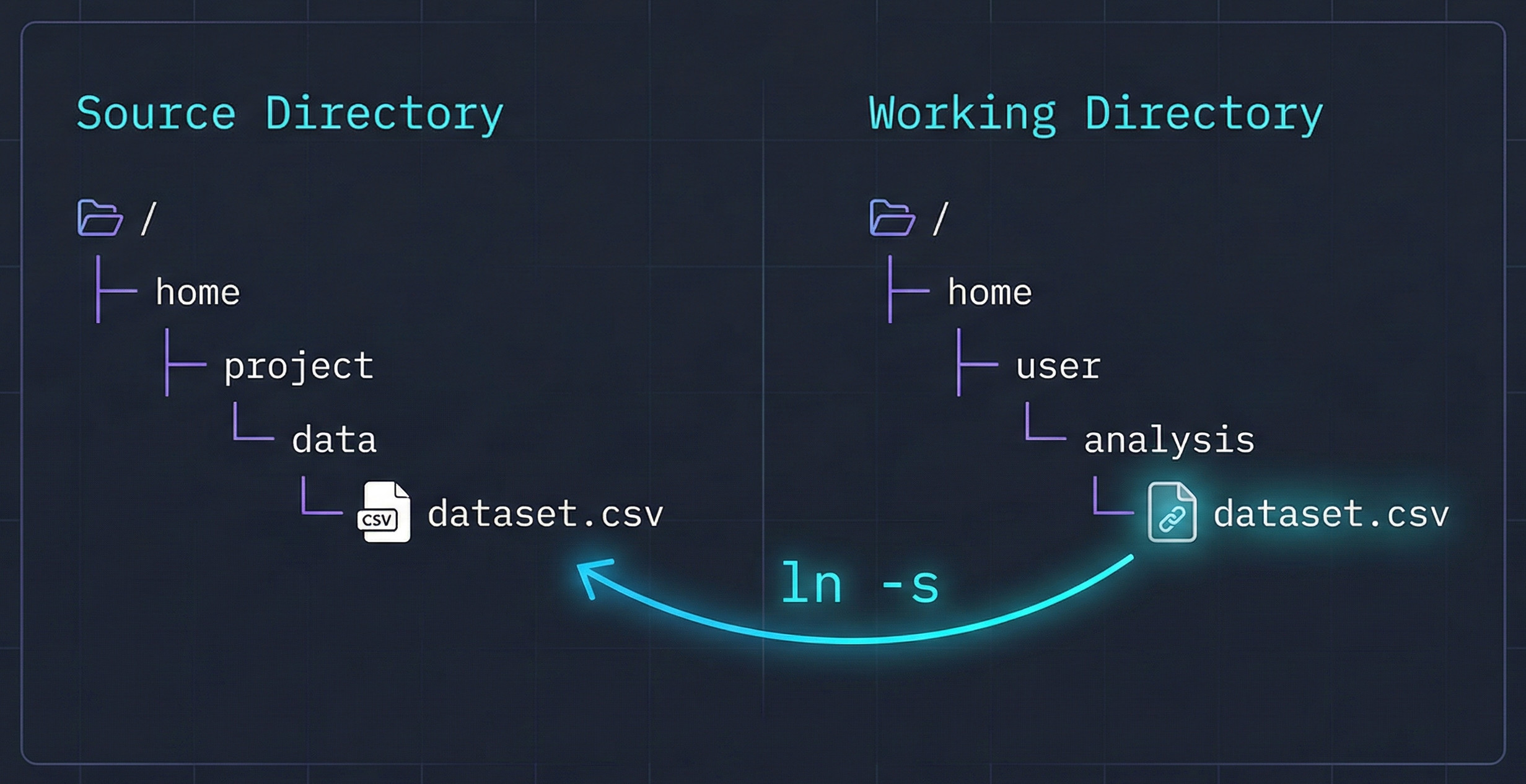
Luckily you can make a shortcut so that you can reference your iCloud folder directly from your home folder. You can make a symbolic link. Let’s say that you want to be on the command line in your home folder and cd icloud and be in your iCloud folder you can do that by setting up a symbolic link with the ln command.
The format of the command is simple, to make a link to a directory elsewhere in your file system it is simply ln -s <where you want to go> <name of the link to get there>
So if you want to make a symbolic link in your home folder to goes to your iCloud folder, the command is:
ln -s ~/Library/Mobile\ Documents/com~apple~CloudDocs/ iCloud
Obsidian Bonus
I am also a fan of Obsidian the markdown note taking app. Something I’ve noticed is that when using iCloud your vaults live in their own location separate from your normal iCloud drive. You can use symbolic links to get to them directly from your home directory as well (Disclaimer, use with care and do’t go breaking things :))
ln -s ~/Library/Mobile\ Documents/iCloud~md~obsidian/ ~/Obsidian
Enjoy, and happy navigating.