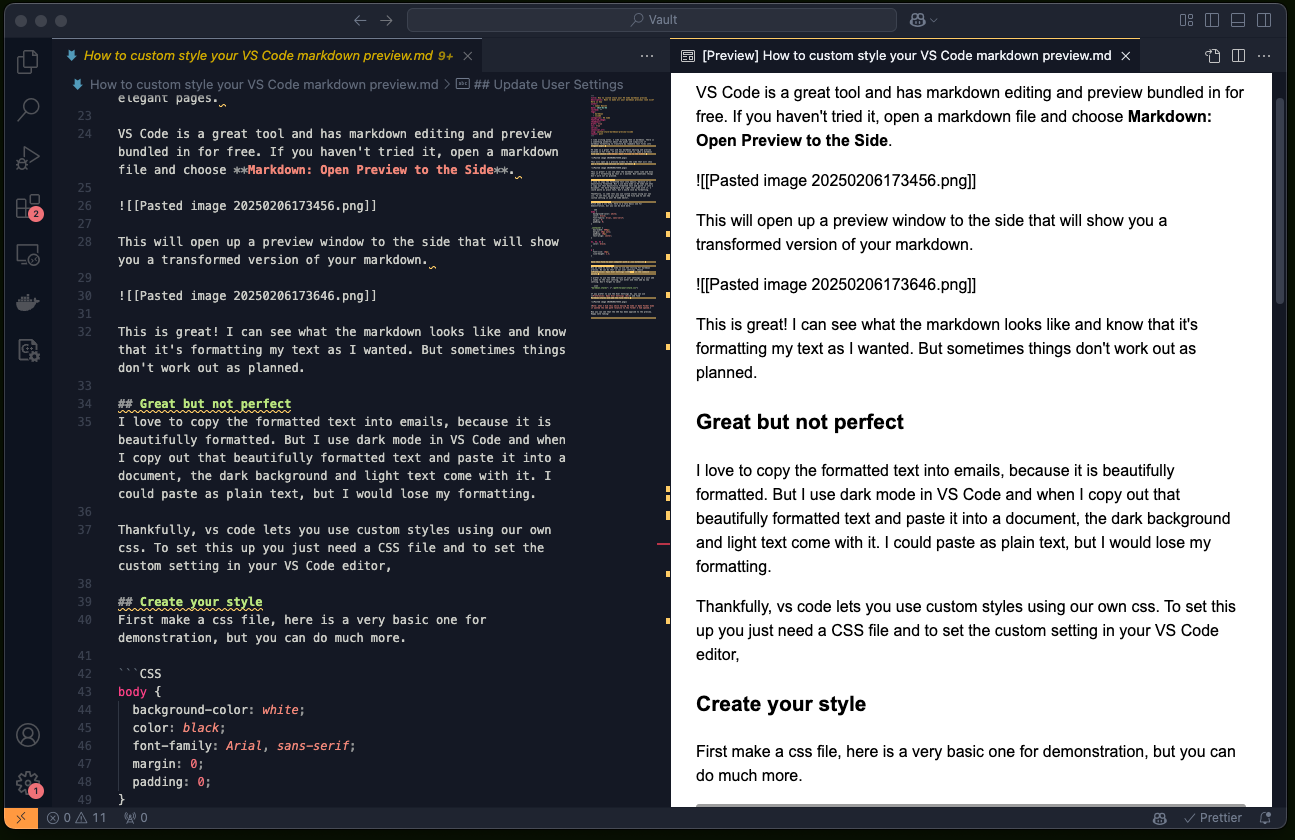
I like writing notes. I like writing them in markdown. There is something wonderful about the power and simplicity of markdown formatting to transform my readable text files into elegant pages.
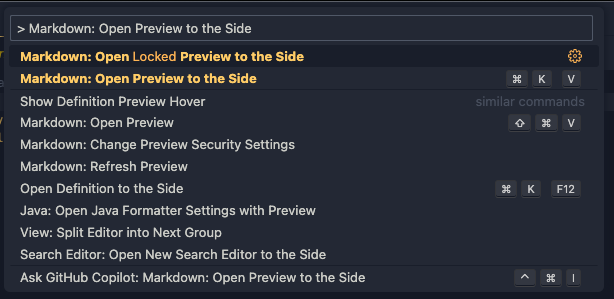
VS Code is a great tool and has markdown editing and preview bundled in for free. If you haven’t tried it, open a Markdown file and choose Markdown: Open Preview to the Side.
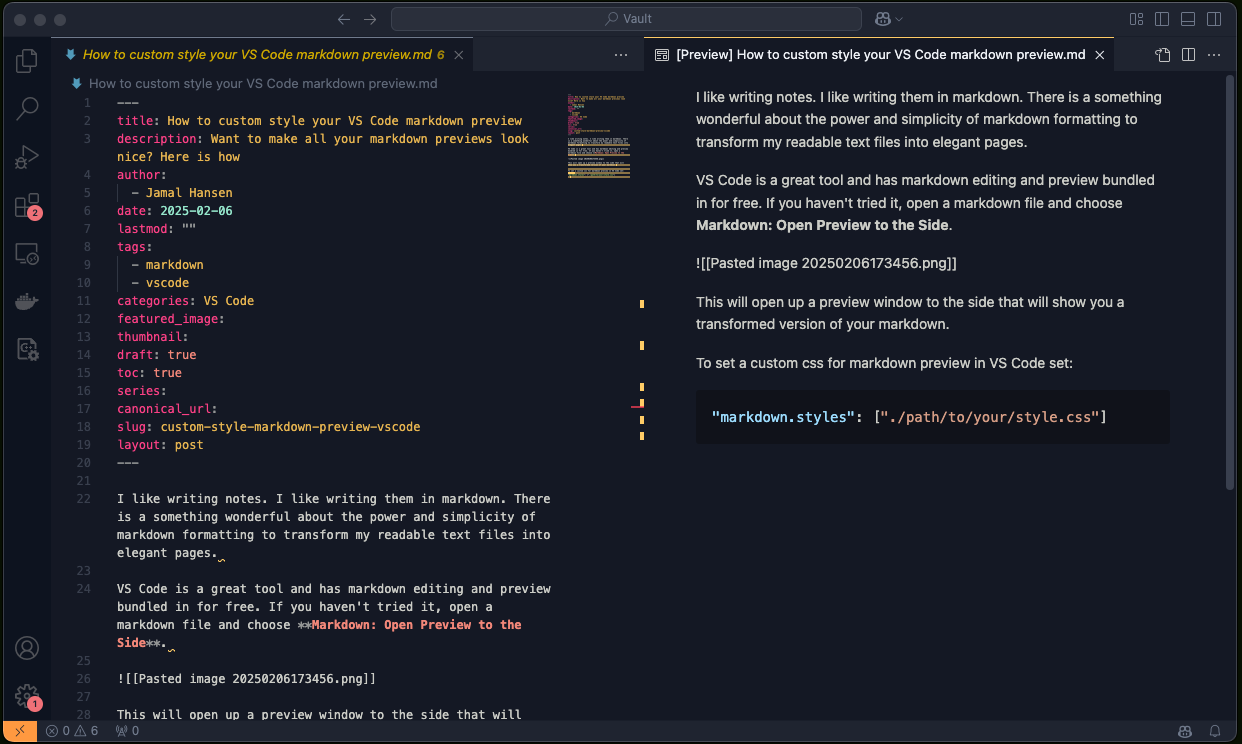
This will open up a preview window to the side that will show you a transformed version of your markdown.
This is great! I can see what the markdown looks like and know that it’s formatting my text as I wanted. But sometimes things don’t work out as planned.
Great, but not perfect
I love to copy the formatted text into emails, because it is beautifully formatted. But I use dark mode in VS Code, and when I copy out that beautifully formatted text and paste it into a document, the dark background and light text come with it. I could paste as plain text, but I would lose my formatting.
Thankfully, VS Code lets you use custom styles using our own CSS. To set this up, you just need a CSS file and to set the custom setting in your VS Code editor.
Create your style
First, make a CSS file. Here is a very basic one for demonstration, but you can do much more.
body {
  background-color: white;
  color: #333;
  font-family: -apple-system, BlinkMacSystemFont, 'Segoe UI', sans-serif;
  padding: 20px;
  max-width: 800px;
  margin: 0 auto;
}

h1, h2, h3 {
  color: #111;
}

code {
  background-color: #f5f5f5;
  padding: 2px 6px;
  border-radius: 3px;
}

pre {
  background-color: #f5f5f5;
  padding: 16px;
  overflow-x: auto;
}
Save this file somewhere accessible. I keep mine at ~/.vscode/markdown-preview.css or the root of my project. Remember where you saved it for the next step.
Update User Settings
Now we need to tell VS Code to use the styling for the markdown preview. We can do that in our user settings. Choose Preferences: Open User Settings (JSON) in the command palette.
I prefer to use the JSON version of user settings, so I just add a comma to the last setting, hit enter, and then add my new setting. Don’t forget to save!
"markdown.styles": ["./path/to/your/style.css"]
If you prefer to use the User Settings UI, you can use Preferences: Open User Settings (UI) and find Markdown:styles and add the file there.
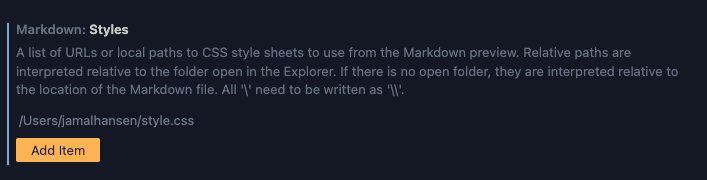
Path gotcha: In Open Folder mode, VS Code expects the path relative to your workspace root, not your home directory. If the styles aren’t applying, check your path.
The preview should update automatically. If it doesn’t, close and reopen it with Markdown: Open Preview to the Side again.
Now you can see that the CSS has been applied to the preview. Happy note-taking!